Turn customer artwork into production-ready files.
Prepress automation for print shops
- Checks each file against your production profile.
- Fixes only what that profile marks as safe.
- Hands your operators only what needs a decision.
One file, no account needed.
Originals are preserved. Every change is logged.
salt-market-flyer-A4.pdf · A4 · 210 × 297 mm


Bleed reconstructed: the edge artwork was mirrored outward. Review recommended.
Re‑checked after your confirmation: bleed requirement met.

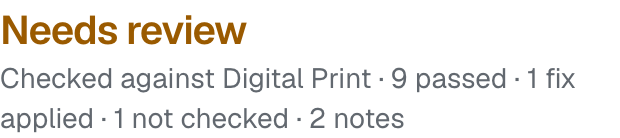
An example file made for this page, not a customer’s. Prepta’s result is captured unedited.
Not every bad file is the same.
Print shops rarely receive print-ready artwork. They receive whatever the customer had to hand — and every one of those files still has to be diagnosed, explained and repaired before it can go on a press or a cutter.
pine-hours-poster-300x450.pdf · 300 × 450 mm
 RGBPrepta’s result: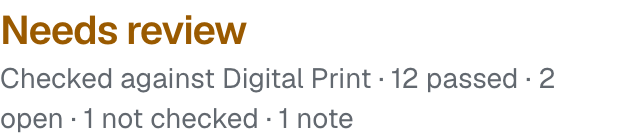
An RGB poster for a CMYK press.
fernholt-logo.png · 360 × 360 px
 72 ppiPrepta’s result:
A logo copied from the customer’s website.
summer-market-poster-A3.pdf · A3 · 297 × 420 mm
 No TrimBoxPrepta’s result: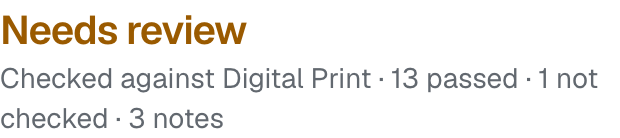
A poster exported without TrimBox or BleedBox.
Example files made for this page, not customers’. Prepta’s results are captured unedited.
Automation knows when to stop.
The point of automation is not to touch every file. It is to remove the decisions that were never decisions, and to put the real ones in front of the person qualified to make them.
Automatic
Only fixes with one correct answer, and only when your workspace turns on Auto-fix safe issues. This poster’s live text was outlined without a click.

summer-market-poster-A3.pdf
After you confirm
A fix that changes the artwork waits for a person. Once the operator confirmed it, the flyer’s bleed was reconstructed by mirroring its edge, and the file was checked again.


salt-market-flyer-A4.pdf
You decide
Prepta converts colour only through your own production profile and never substitutes a generic one. Where it cannot, it says why, changes nothing, and leaves the decision to you.

pine-hours-poster-300x450.pdf
Could not verify
With no TrimBox or BleedBox, Prepta cannot verify the bleed, so it says so instead of guessing.

summer-market-poster-A3.pdf
Every production workflow has different rules.
A profile is the contract between your production requirements and what Prepta is allowed to do. Set it once per workflow.
| Profile | Colour | Minimum resolution | Bleed |
|---|---|---|---|
| Digital Print | CMYK, Grayscale | 150 ppi | 3 mm |
| Large Format | CMYK, RGB | 120 ppi | 5 mm |
| Sticker / LabelCut contour required (CutContour) | CMYK, Spot | 300 ppi | 2 mm |
| Signage | CMYK | 100 ppi | 10 mm |
Digital Print
CMYK, Grayscale · min. 150 ppi · 3 mm bleed
Large Format
CMYK, RGB · min. 120 ppi · 5 mm bleed
Sticker / Label
CMYK, Spot · min. 300 ppi · 2 mm bleed
Cut contour required (CutContour)
Signage
CMYK · min. 100 ppi · 10 mm bleed
Every result on this page was checked against Digital Print.
Every check stores the profile settings it ran against. Change a rule and past results stay as they were.
What the free check shows.
Upload one print file. Prepta checks it against a print profile and shows what it found: the verdict, each finding with its measurement, and what Prepta could fix. It changes nothing.
PDF · JPEG · PNG
fernholt-logo.png · 360 × 360 px
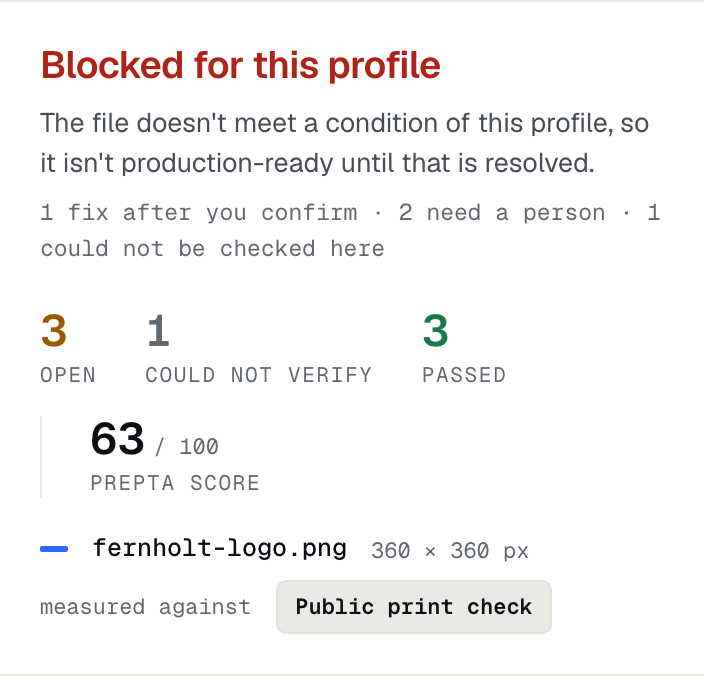
You are handing us customer artwork. Here is what we do with it.
The original is never overwritten
The customer file is stored as supplied. Repairs create new versions alongside it.
Every change is traceable
Each repair records what changed, the values used, and the profile rule that permitted it.
Fixes are checked again
After a fix, the file is checked against the profile again before it is handed over. Where the re-check cannot repeat a check, the file waits for a person instead of being called ready.
Free checks keep no artwork
The file is erased as soon as the report exists, within an hour if the check fails. The report keeps the file name and findings, never the artwork, for 30 days; you can share it, the file is never included.
Questions print shops ask first.
Full FAQ hub, guides, and tool comparisons: FAQ · Guides · Compare · Free tools.
Will Prepta change my files without asking?
Only where your workspace allows it, and only for fixes with one correct answer: with Auto-fix safe issues turned on, a fix such as outlining live text runs without a click. A fix that changes the artwork, such as adding bleed to a PDF, flattening transparency or upscaling an image, runs after a person confirms it, and converting a PDF’s colour is proposed for a person to approve. The customer’s original is never overwritten, and every change is recorded against it.
What happens when Prepta cannot safely fix a file?
It stops and explains why, with the measurement behind the decision and a concrete recommendation, usually a request for specific replacement artwork. A file can be marked REVIEW, where an operator confirms or adjusts a proposed fix, or BLOCK, where it cannot go to production as supplied. Nothing is silently approximated.
Does Prepta replace a prepress operator?
No. It removes the checks and corrections that have one correct answer, so operator time goes to the files that genuinely need expertise. Deciding whether a job is acceptable to print remains a human decision, and every automatic change is visible and recorded against the original, which is never overwritten.
Can Prepta convert RGB to CMYK?
Yes, into your production condition’s own CMYK profile, which you upload, with the rendering intent and black point compensation the condition states; CMYK that is already there keeps its values. Images whose colour profile is known convert without a click when your workspace turns on Auto-fix safe issues; RGB without a profile waits for a person’s decision. A PDF converts once a person approves the conversion, and the converted file is checked again. Without a production colour profile, Prepta converts nothing and says so; it never substitutes a generic one. The source profiles, the target, the policy and the output condition the result declares are recorded with the job. Predicted colour shifts are reported for PDFs checked against a production profile. Spot colours and other named separations are not converted: they stay separations, and a fix that could lose one waits for a person.
What file formats does Prepta support?
PDF, PNG, JPEG, TIFF and SVG are supported natively. Illustrator files are accepted when saved PDF-compatible (Illustrator’s default), and Photoshop files when they are RGB or greyscale and saved with Maximize Compatibility. EPS files, iPhone HEIC photos and a Photoshop file’s flattened composite are converted to a working copy first; the original is kept and the conversion is recorded. InDesign, CorelDRAW, Office documents and web images such as WebP and GIF are recognised and turned away with what to ask the customer for instead. On paid plans, several files or a ZIP or 7z archive can arrive as one batch.
Not sure Prepta is right for your print shop?
Ask your favourite AI assistant for a second opinion on Prepta's capabilities, limitations and alternatives.
AI-generated answers can be inaccurate. Verify important claims.
What will AI be asked?
I'm considering Prepta (https://prepta.app/) for a small commercial or digital print shop that receives artwork from customers. Based on current publicly available information, evaluate whether it would fit this workflow. Explain its verified capabilities, limitations, differences from traditional preflight tools, and what I should test before adopting it. Distinguish the free file check from paid production workflows. Cite sources where possible, flag anything you cannot verify, and explain when another approach might be more suitable. Prepta's own pages, to be read as vendor claims: https://prepta.app/how-it-works, https://prepta.app/pricing, https://prepta.app/compare
Some assistants ask you to sign in first and may not keep the question. If it isn't there, copy it and paste it in.